
How to Get Google Meet and Teams Controls on Mac
Mute, camera, hand, and leave keys for Meet and Teams on a Mac. Why the call window has to be focused, what the orange menu-bar dot actually does, and when a hardware pad is worth the desk space.
Someone says you're muted, and the only control in sight is a tiny mic icon under whoever is presenting. You have the keys for that on the Mac, which beats hunting for the icon, but only if the combo matches the app in front.
Meet and Teams do not share those keys, so muting in one can bookmark a tab or open your home page in the other. Zoom uses a different set from either of them, and that layout is in the Zoom meeting guide.
Two apps, two sets of keys
Meet
Meet on a Mac runs in a browser tab, so these keys only exist while that tab is open. Google's shortcut list for Meet is the set to learn, and Shift-? inside a meeting opens the same list. The three you will actually reach for are mute, camera, and raise hand.
| Action | Keys |
|---|---|
| Mute or unmute the mic | Command-D |
| Turn the camera on or off | Command-E |
| Raise or lower your hand | Control-Command-H |
Hold Space for push-to-talk, but only after you enable Push to Talk in Meet settings. When you need to share your screen, Control-Command-T starts presenting, and that shortcut is on the same list.
The odd gap is leaving. Meet has no shortcut for it, so the options in Google's screen reader guide are clicking the red Leave button or pressing Command-W, which leaves by closing the whole tab. Command-left bracket also works and drops you back on the Meet landing page, which is handy if you have another call straight after.
The thing that trips most people up is focus. Meet only hears Command-D when its tab is the one in front, so if you've just clicked into Slack to paste a link, the shortcut goes to Slack instead, and in Chrome it bookmarks the page (Chrome's shortcut list). Click back into the meeting first, not the chat box, then press it.
Shift-M opens picture-in-picture, and it is on that same shortcut list. Nothing there says the mute keys keep working once you are in the small window. If a key does nothing, click the Meet tab and try again.
Teams
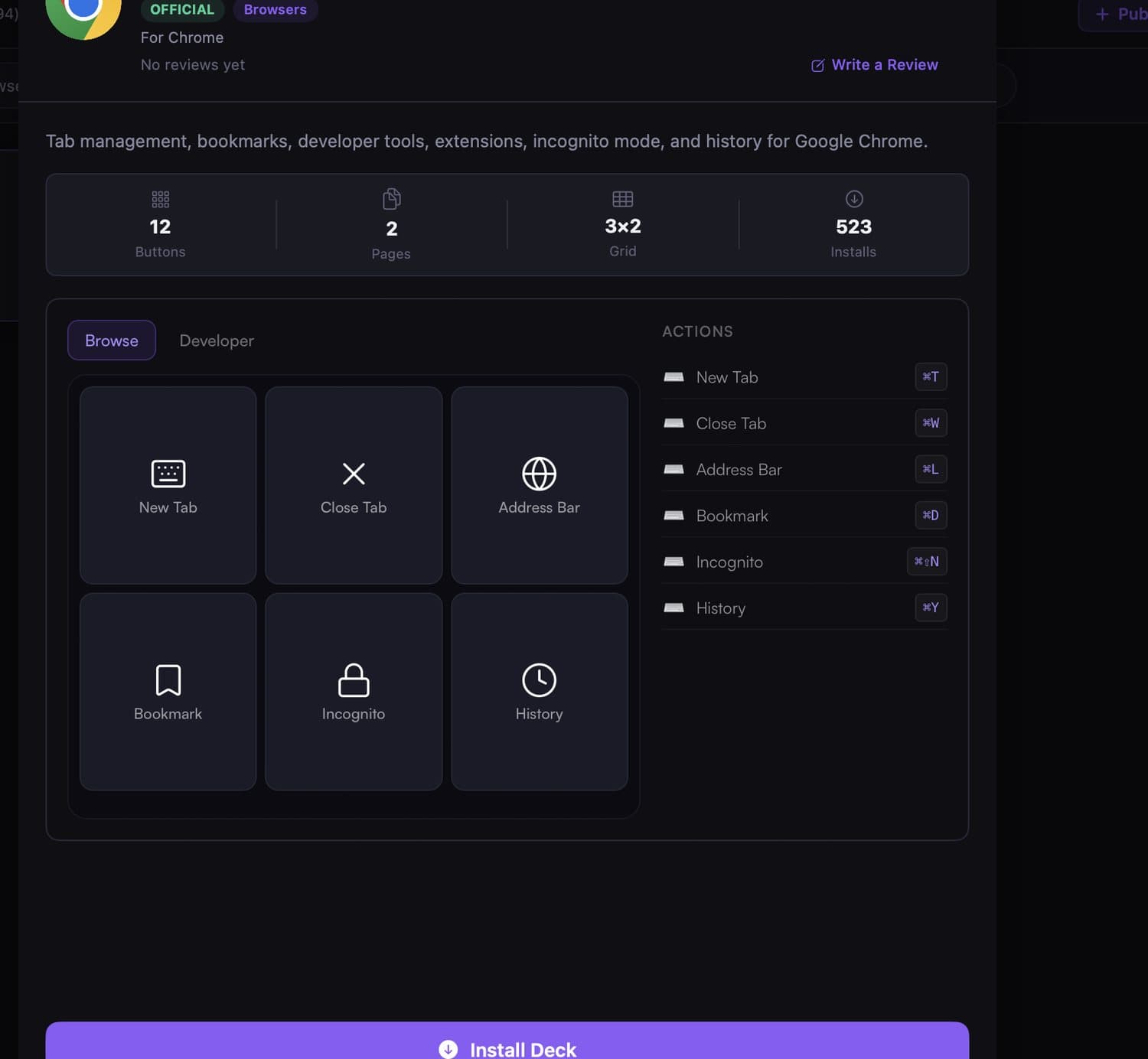
Teams is easier to leave than Meet, because hanging up has its own key. These four are the same in the Mac app and in a browser on a Mac, from Microsoft's keyboard shortcuts for Teams.
| Action | Keys |
|---|---|
| Toggle mute | Command-Shift-M |
| Toggle video | Command-Shift-O |
| Raise or lower your hand | Command-Shift-K |
| End the call | Command-Shift-H |
That last row is labeled End audio call and End video call, but both of them are Command-Shift-H. That is the hang-up Meet never gave you, and it works in the Mac app and in the browser.
The rest of the call list does not line up the way those four do. Accepting a call, starting one, or taking a screen share can use different keys in the browser than in the Mac app. Accepting a screen share is Command-Shift-V in the Mac app, and the Web column has no shortcut for it.
Use the Mac half of that page when you check anything past mute, camera, hand, and leave. The Windows table higher up gives the browser no camera shortcut, but on a Mac the browser still uses Command-Shift-O.
If a key feels off, press Command-period in the Teams Mac app and the shortcut list opens. The table is for a US keyboard, so another layout can shift which letter you actually hit.
Hold Option-Space to unmute only while the keys are down, then let go and you drop back to muted. You turn it on under Settings, then Privacy, then Keyboard shortcut to unmute. The Mac table shows that hold for the Mac app and for Teams in the browser.
The catch is the chat box, where those shortcuts do not fire, including the hold-to-unmute combo. They also fail while PowerPoint Live or Whiteboard is shared on the meeting stage, which Microsoft's mute article covers. Click the meeting itself before you try the keys, or nothing happens.
Teams only hears its shortcuts when its own window is in front, just as Meet needs its tab. Command-Shift-M does nothing while Chrome or Notes is the active app, so click Teams before you mute. Command-Shift-H is the painful one, because in Chrome it opens your home page and the call keeps going.
The orange dot will not mute you
An orange dot in the menu bar means the microphone is in use, which is easy to misread as muted. Apple's menu bar guide puts those dots to the right of Control Center, and a green dot means a camera is in use. Only one dot shows at a time, so if both are on you see green, which can look camera-only while you are still live.
Open Control Center and the top of the panel can name the app using the mic or the camera. Clicking that line opens the Privacy window, which does not toggle mute in Meet or Teams. The Sound slider beside it is your speakers, so dragging it down makes them quieter and leaves your mic as it was.
The switch to leave alone during a call is Microphone, under Privacy and Security in System Settings, and Apple's microphone page describes it. Turning an app off there pulls its permission rather than muting you, and you have to allow the mic again before it returns. Mute from inside the call instead, while you are still in it.
What actually mutes you
You have a few ways to cut the mic, and they fail at different moments of the same call. The keyboard is fine while you are looking at the meeting, and it falls apart once Slack is in front.
| Option | Mute, camera, hand, leave | While another app is in front | Cost |
|---|---|---|---|
| App shortcuts | Meet: mic, camera, hand. Teams: those, plus hang up | No. Meet needs its tab. Teams needs its window | Free |
| Menu bar and Control Center | Shows that the mic or camera is on. Does not mute | The dot stays visible. It still does not mute | Free |
| Hardware pad | A physical key, often typing the same shortcut | Same focus limit, unless the pad mutes the Mac input or uses its own plugin | The price of the pad |
| Phone or tablet buttons | A labeled button for that shortcut, or a system mic mute | A shortcut button has the same limit. A system mic mute does not | Free on a device you own, or a paid app |
What the table is really sorting is what still works once Slack is in front. Shortcuts fail there, a pad that only types Command-D or Command-Shift-M fails there too, and the menu-bar dot never mutes anything. A phone you already own can mute the Mac microphone instead, and that one does not care which window is focused.
A pad, if you are done hunting for the icon
A pad earns the desk space when you mute while looking at another screen and you want a key that stays put. A Stream Deck stays powered beside the keyboard, which a phone in your pocket will not. What is a Stream Deck? covers the hardware if you want that background before you buy one.
Some pads mute the Mac input instead, or they talk to the call through their own plugin. That is a different product from a button that only types a shortcut, so check which one you would be buying. Use the built-in keys for a week and note each time the wrong window was in front. If that list gets long, buy the pad, or mute the Mac microphone and stop sending shortcuts at the call.
DeckPilot
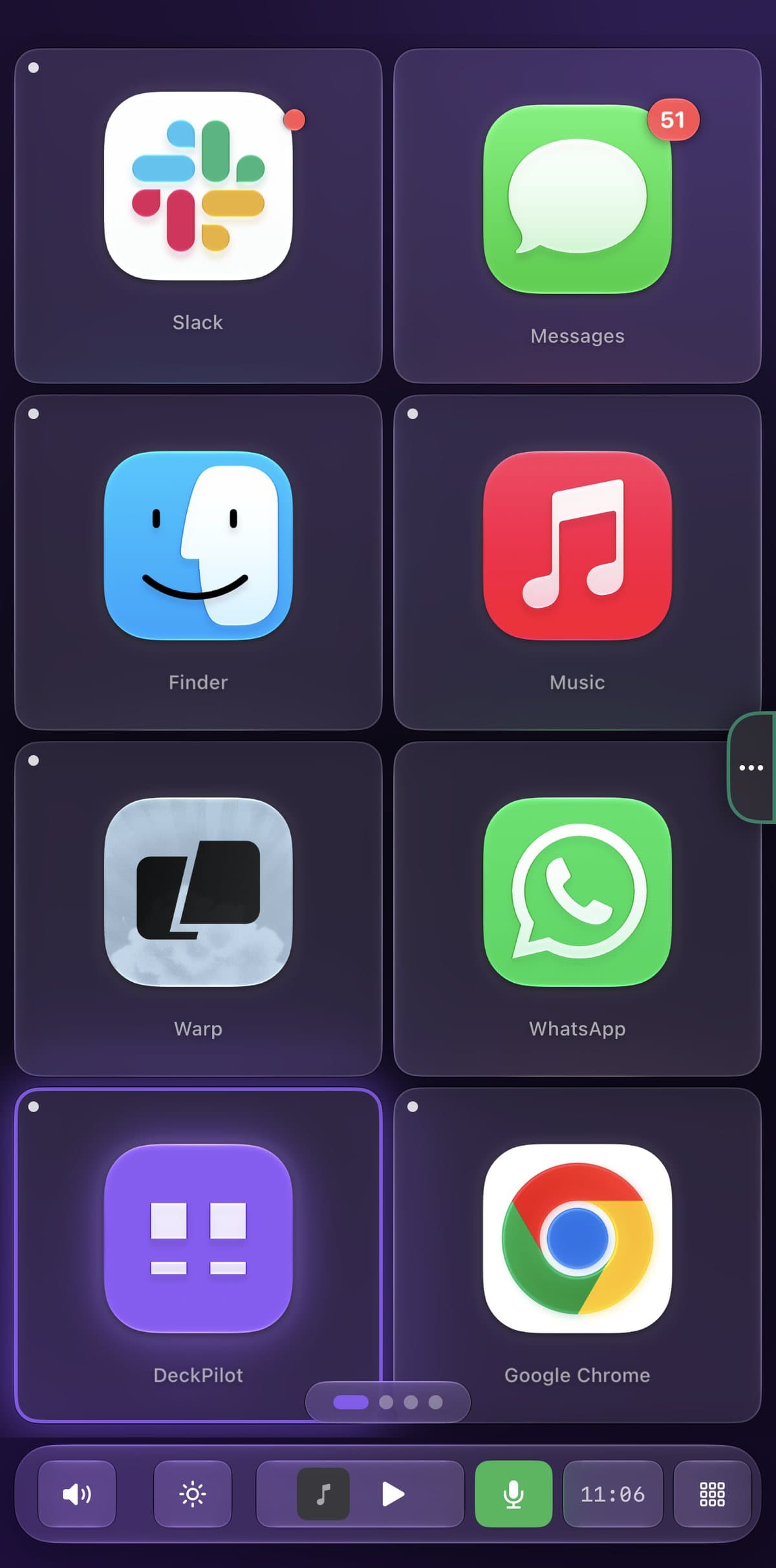
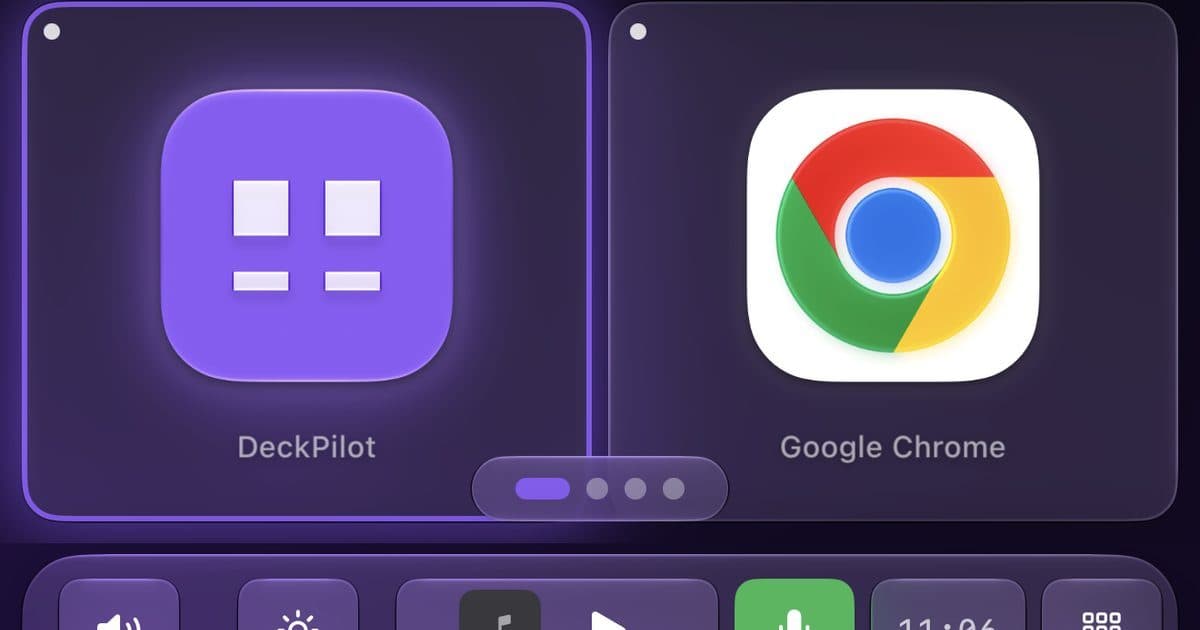
DeckPilot is a Mac app with an iPhone app and an iPad app, and a phone button can send a shortcut to the Mac. You record the combo and a tap plays it back, using the steps in set up keyboard shortcuts. One button can be Command-Shift-M for Teams, and another can be Command-D for Meet. The tap still types into whatever window is in front, so a Meet button bookmarks the Chrome tab if Meet is not focused.
There is a second kind of mute under system controls, called Mic Mute, which mutes the Mac microphone instead of toggling Meet or Teams. The call goes quiet even when the Meet tab is buried in the background. Meet's own icon can still show you as unmuted, so pick one switch and stay with it.
The strip along the bottom can show live mic state. The Touch Bar mic mute page describes it as red while the mic is active and dimmed when it is muted. The green microphone in these pictures is the button art, not that live color.
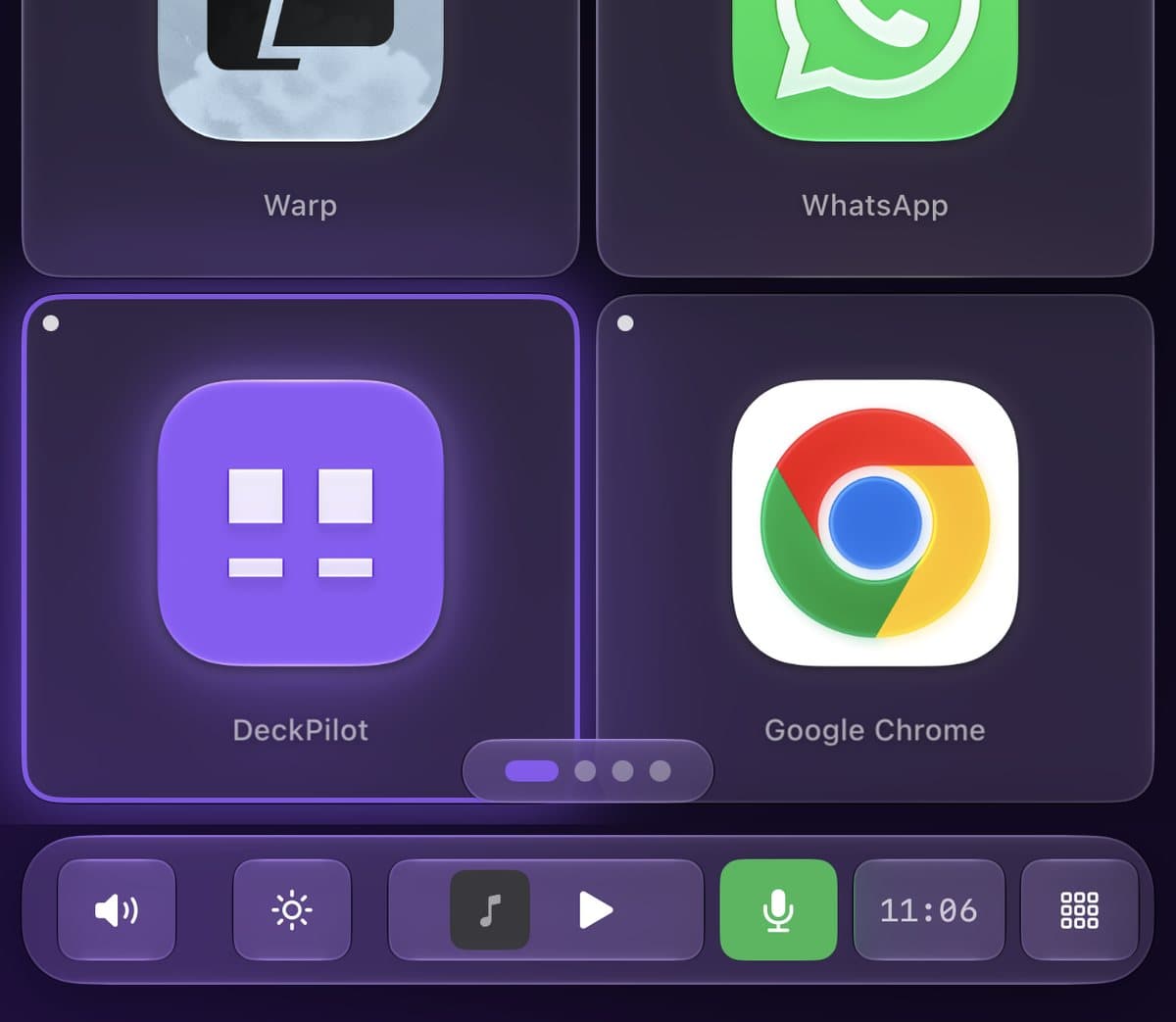
Mute, camera, and leave fit on the phone. Download DeckPilot and try those three on your next call.
Put mute and leave where your hand already goes
Keep the same order every day, on the keyboard or on buttons: mute, then camera, then raise hand, then leave. In Teams, leave is Command-Shift-H, and in Meet it is the red Leave button, because Command-W closes the whole tab. That is a rough exit if the tab still had your notes in it.
If you only learn two, learn mute and leave, because those are the ones you need mid-sentence. For Meet, click the tab and then press Command-D, and for Teams, click the window and then press Command-Shift-M. In Chrome, get back to the Meet tab before Command-D, or you bookmark the page. If another window keeps taking focus, stop adding shortcut buttons and mute the Mac microphone instead.
Questions that come up
Meet ignored Command-D. What happened?
The Meet tab was not the one in front, or the cursor was in the chat field, so the shortcut never reached the call. Click back into the meeting, not the chat box, and try the shortcut again. In Chrome, Command-D bookmarks the page when Meet does not take the key.
How do I leave a Meet call on a Mac?
Meet has no leave shortcut, so use the red Leave button if you want the tab to stay. Command-W leaves by closing the tab, and Command-left bracket drops you back on the Meet landing page.
How do I hang up a Teams call on a Mac?
Command-Shift-H ends the call in the Teams Mac app and in Teams in the browser, for both an audio call and a video call. The Teams window has to be in front, because in Chrome that same combo opens your home page.
Do the Teams keys match in the browser and the Mac app?
Mute, camera, raise hand, and hang up do, on Command-Shift-M, Command-Shift-O, Command-Shift-K, and Command-Shift-H. Accepting a screen share does not, because the Mac app uses Command-Shift-V and the web column has no shortcut.
Does the orange menu-bar dot mute the mic?
No, the orange dot means the microphone is in use and the green dot means a camera is in use, and neither one toggles mute. Open Control Center to see which app, and use the Sound slider only when you want the speakers quieter.
When is a hardware pad worth it?
A pad is worth it when you want a key you can press without looking, and you are fine paying for a device that stays on the desk. A pad that only types a shortcut still needs the Meet tab or the Teams window in front. If a phone can already send those keys, or mute the Mac mic, try that before you buy the pad.