
How to Use an Old iPad as a Macro Pad for Your Mac
Got a spare iPad in a drawer? Turn it into a second screen, a shared keyboard and pointer, or a grid of Mac shortcut buttons. Here's how to pick and set each one up.
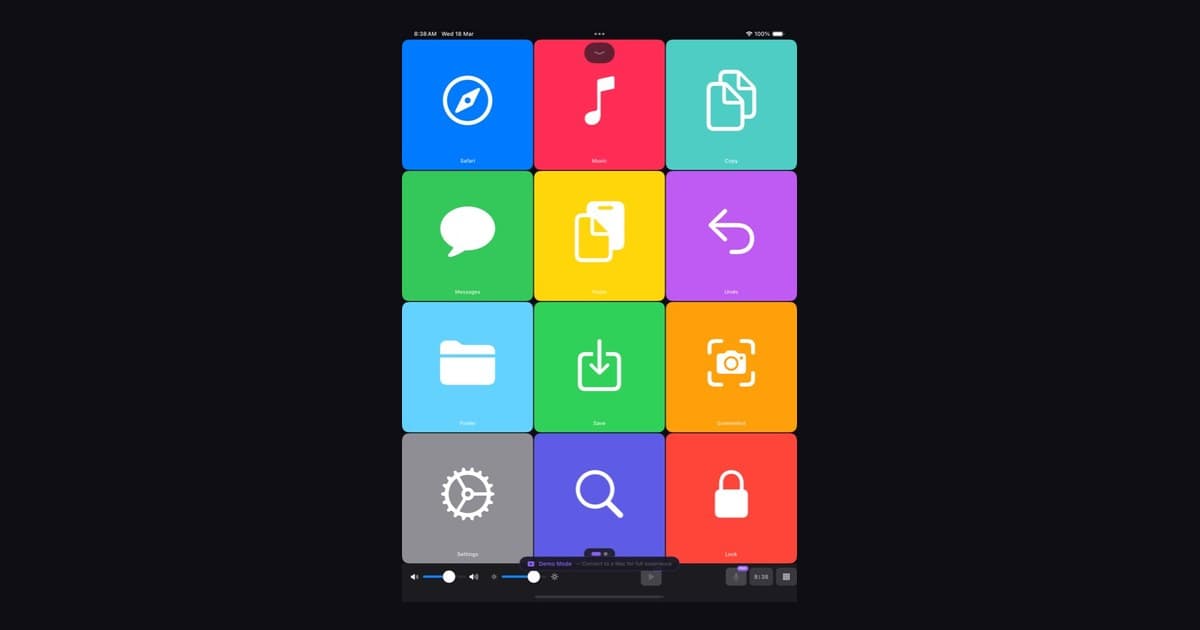
You can use an old iPad as a macro pad for your Mac, and the useful one is often already in a drawer. Apple includes two features. A grid of shortcuts you name yourself is a third job, and it takes a button app or a separate pad. We make DeckPilot, one app for that grid. The job comes first.
Three jobs people mix up
A second display. The tablet shows the Mac desktop, and you move windows onto it. That is Sidecar.
A shared keyboard and pointer. The tablet keeps its own apps. You move the Mac's pointer onto it and type there. That is Universal Control.
A shortcut grid. The tablet shows buttons you named. A tap runs an action on the Mac: a keystroke, an app launch, mute, a scene change. macOS does not include that grid. If you do not have a spare tablet, use the Dock and Shortcuts on the Mac, as described in free buttons from the Mac you have. Screen space, a tablet that keeps its own apps, or a command you repeat: pick one of those before you buy a stand.
Which models still qualify
Open Settings, then General, then About, and read the model name. If you only see a number such as A1893, Apple's Identify your iPad model page maps it to a generation. Figures below are from Apple's Sidecar article (updated September 2026) and Universal Control article (updated July 2026).
Sidecar needs iPadOS 13 or later and macOS Catalina 10.15 or later. Tablets: every iPad Pro, iPad (6th generation) or later, iPad mini (5th generation) or later, and iPad Air (3rd generation) or later. Macs: MacBook Air from 2018 or later, the 27-inch Retina 5K iMac from Late 2015, and other Mac models introduced in 2016 or later. Both devices use the same Apple Account with two-factor authentication. Wireless also needs Bluetooth, Wi-Fi, and Handoff, within 10 meters (30 feet). The tablet must not share its cellular connection, and the Mac must not share its internet connection. Over USB, the tablet has to trust the Mac.
Universal Control needs iPadOS 15.4 or later and macOS Monterey 12.4 or later. The tablet list matches Sidecar. Macs: iMac and iMac Pro from 2017 or later, plus that Late 2015 Retina 5K iMac, and other Mac models from 2016 or later, except the 13-inch MacBook Air from 2017. One Mac can link with up to two other nearby Macs or tablets. Account, distance, and radio rules match Sidecar.
A button app sets its own floor, often above iPadOS 13. DeckPilot needs iPadOS 17 or later on the tablet and macOS 14 or later on the Mac. Generations for that line are in the setup walkthrough. A tablet that cannot install the app may still qualify as a Sidecar display or a Universal Control screen.
What Sidecar is good at
Hover the pointer on a window's green button and send that window to the tablet, or drag the window across. To mirror instead of extend, pick the tablet under Screen Mirroring in Control Center.
Sidecar can show a sidebar: Command, Option, Control, and Shift (touch and hold to press, double-tap to lock), undo, the onscreen keyboard, Home, and disconnect. In Displays settings you can move that sidebar left or right, and show the Touch Bar on the top or bottom edge. The Touch Bar replacement guide stays on that strip.
Touch stays limited until iPadOS 27 and macOS 27. Apple says earlier systems offer two-finger scroll, plus cut, copy, paste, and undo. Those newer systems widen touch for Mac windows and menus.
Reach for Sidecar when you wanted more screen. The sidebar is a few modifiers, not a page of shortcuts you designed.
Apple's charging line is the right one: Sidecar runs on Wi-Fi, and you keep the battery up by connecting the USB charge cable that came with the tablet.
What Universal Control is good at
On macOS Ventura 13 or later: System Settings, Displays, Advanced, then turn on "Allow your pointer and keyboard to move between any nearby Mac or iPad." On the tablet: Settings, General, AirPlay & Continuity (older systems say AirPlay & Handoff), then Cursor and Keyboard.
Unlock both and push the pointer off the Mac's edge toward the tablet. Click, use trackpad gestures, and drag between devices, such as a photo into Messages or a drawing into Keynote.
That feature does not draw Mac commands on the tablet. Buttons appear only when an app draws them.
Layouts that fit a larger screen
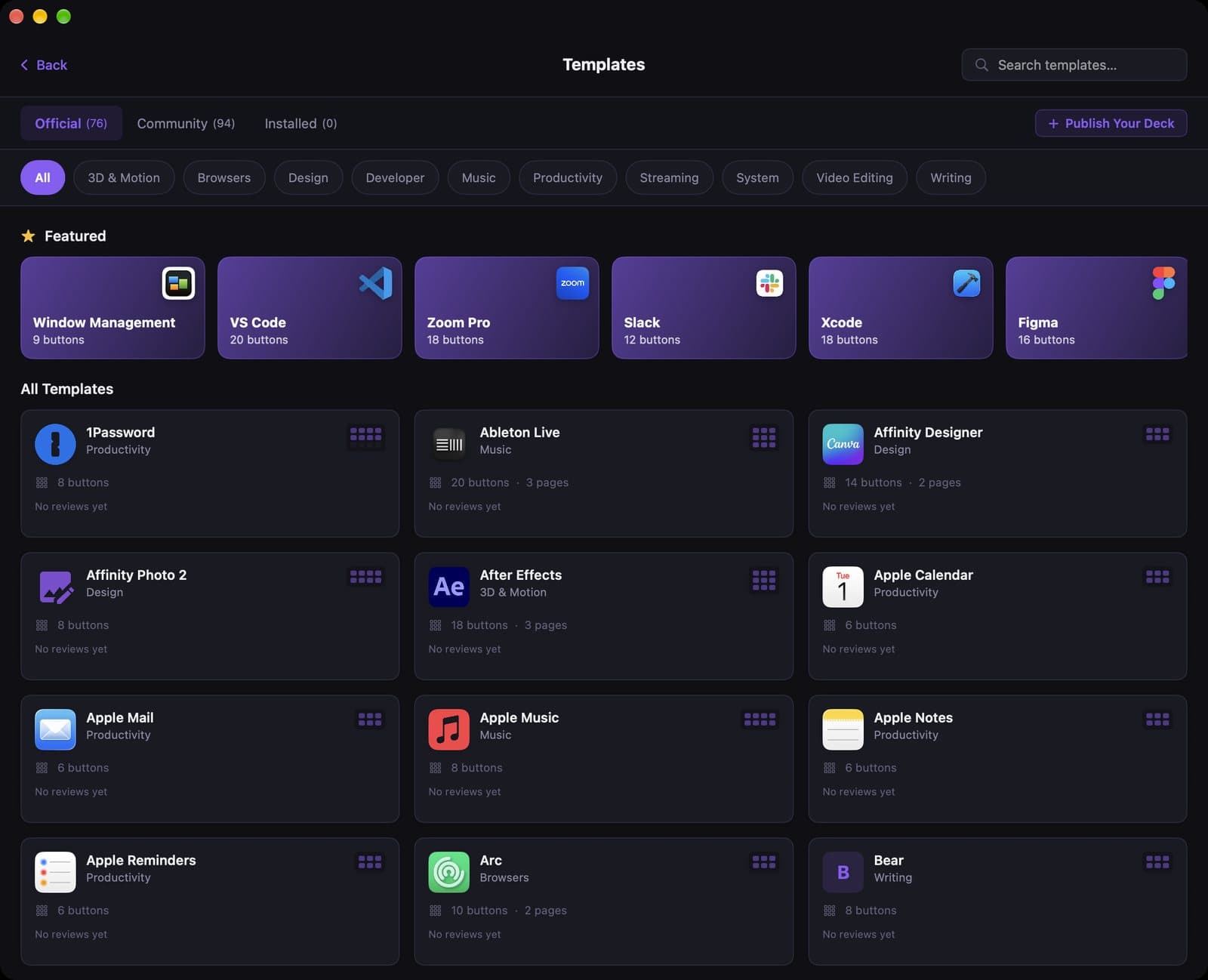
A large screen invites a full grid you will not remember. Start with commands you already reach for, few enough to read from your chair.
Cluster the every-minute actions: transport, mute, the shortcut you fumble. Put rare or destructive actions in a far corner. Words you can read beat icons you have to interpret.
Landscape fits a stand beside the keyboard. Portrait fits a narrow stand above it. Pick the stand before you arrange the buttons.
If the app has pages or separate layouts, split the work: editor, calls, system controls.
Stand, cable, and leaving it powered
Any stable stand works. Put the tablet where you already look, usually beside the keyboard.
Leave it plugged in. A lit screen empties a battery, which is why Apple tells you to use the USB charge cable during Sidecar. Do that for a button app you leave open, too. The cable should leave the port in a straight line.
If the screen sleeps mid-take, lengthen Auto-Lock under Settings, Display & Brightness. Silence notifications on a desk device so a banner cannot cover the control you meant to hit.
When a hardware pad is the better buy
Buy a dedicated pad when you need to press by position, without looking at glass. Buy one when this tablet is still your reader and you want to keep using it that way. Buy one when it cannot run a button app and you did not want a second display.
A hardware pad stays on power and does not return you to a Home Screen after an update. It costs money and holds a permanent spot. If you are unsure, use the tablet for a week and note which taps repeat. What is a Stream Deck? covers the hardware. This comparison is the longer version of hardware versus a device you already own.
One button app: DeckPilot
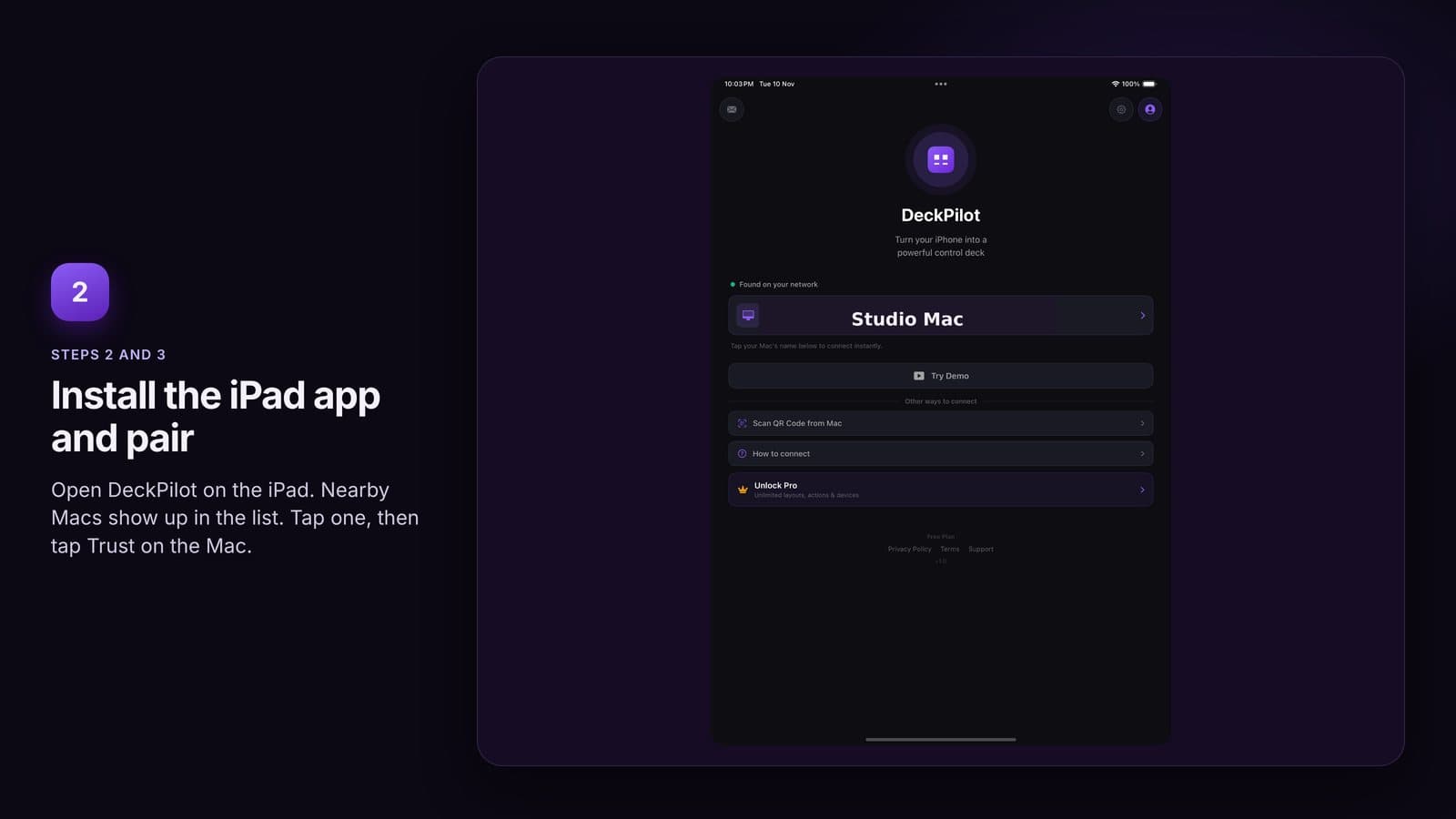
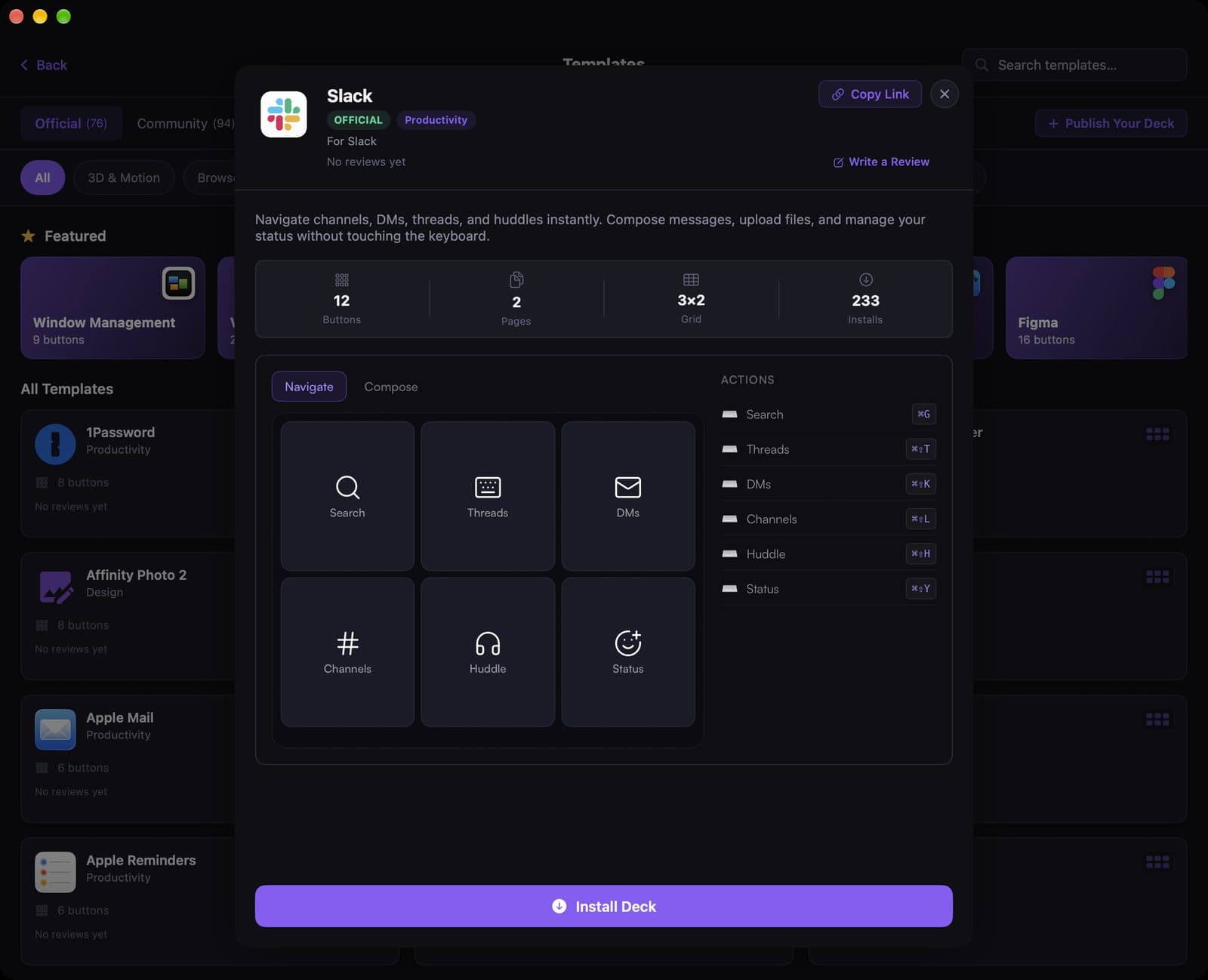
DeckPilot is a Mac app with an iPhone and iPad app. Pair over local Wi-Fi or USB, then tap the tablet to run an action on the Mac. A larger screen can hold a wider grid, and the decks can follow the frontmost Mac app. Download DeckPilot and try it on the iPad already in the drawer.
Step-by-step setup, including older models on the iPadOS 17 line, is the setup walkthrough. Shorter pieces: install, pairing, and a first button. The Mac build is on the download page.
Frequently asked questions
Can Sidecar stay up while another app is open on the same tablet?
No. Apple says opening another iPad app suspends Sidecar until you switch back. One tablet does one of those jobs at a time. A second tablet or a phone can hold the other.
About shows a model number, not a generation. What do I compare?
That A-number is the model identifier. Apple's Identify your iPad model page turns it into a generation. Match the generation to Apple's Sidecar and Universal Control device lists, not the year you think you bought it.
Do both devices need the same Apple Account?
For Sidecar and Universal Control, yes, with two-factor authentication. A button app uses its own sign-in. Use that app's pairing steps.
The battery is swollen, or the tablet runs hot while charging. Keep it on the stand?
No. Unplug it and have the battery checked. A case that no longer sits flat, or heat you can feel, means that tablet should come off the desk.